


RICOH Printer: Set Locked Print Default

Jun 02, 2022
 305
305
The RICOH IM C4500 PCL Printer on the 2nd floor has the capability of storing documents you print in memory until you are ready to release them for printing at the device. This is especially useful for your secure documents. You can do this on a one off basis for individual prints or you can set this as the default. Here is how to set this as the default:
- On the "Start" menu, click "Windows System" > "Control Panel."
- Click "View devices and printers" under the "Hardware and Sound" Category. If you are in the Icons view, just click "Devices and Printers."
- Look for the Printers section, not the Devices section, then right-click the RICOH IM C4500 PCL 6 printer icon, and then click "Printing Preferences."
- Click the "Detailed Settings" tab.
- Click on "Job Setup" under Menu and then change the Job Type from Normal Print to Locked Print.
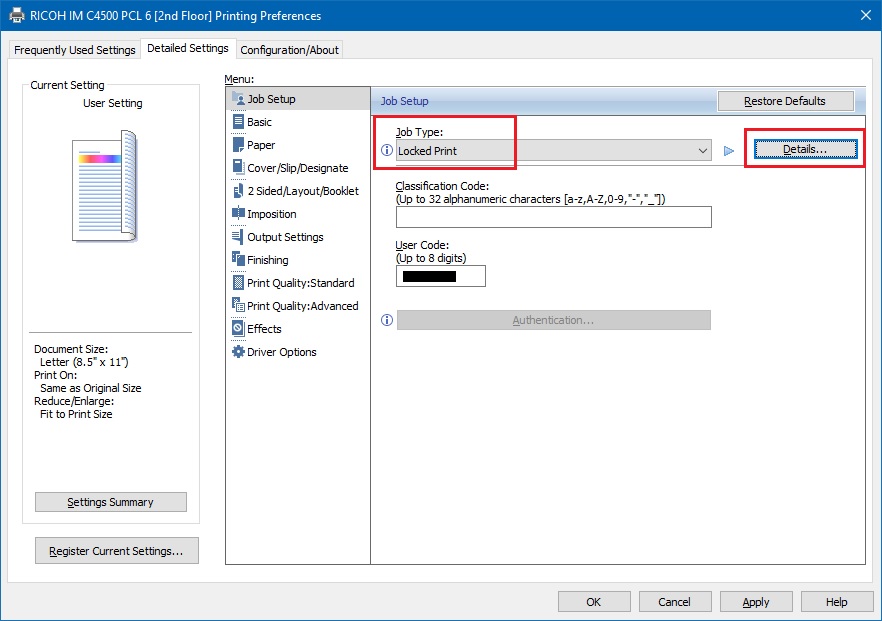
- Click Details and enter the Password you wish to use to unlock.
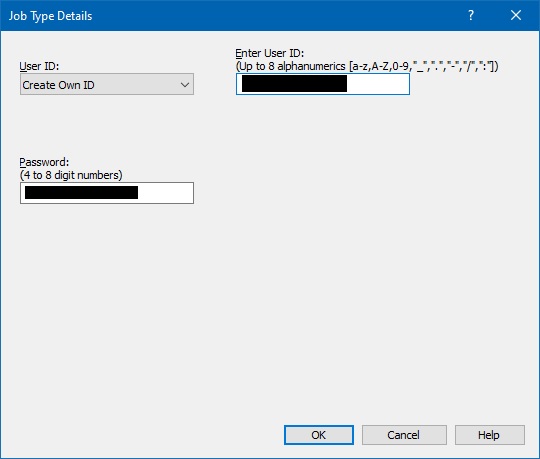
- Click "OK" and "OK" again.
This will now become the default Print Job Type and you will have to unlock print jobs you send at the printer with your password.

