354
354
When you compose/create a new email in Microsoft Outlook App on your mobile device, the majority of you will not see a signature. That is because your signatures are being managed for uniformity by the Exclaimer Cloud Microsoft 365 Signature Manager. The signature is added after you send a message. However, if you install/reinstall the Microsoft Outlook App it will typically come with a Default email signature already installed which will say "Get Outlook for iOS” or “Get Outlook for Android.” These default signatures need to be removed to keep with the uniformity in place for our company.
Here's how:
Quick Jump:
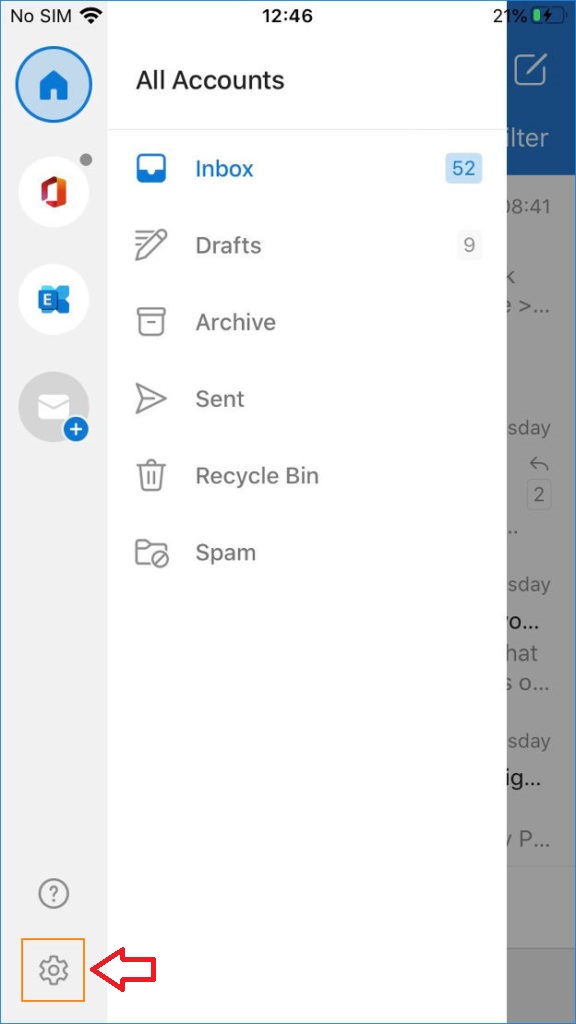
1. Tap the Outlook app, then tap your profile icon in the upper-left corner. In older iOS versions, tap the three-line menu.
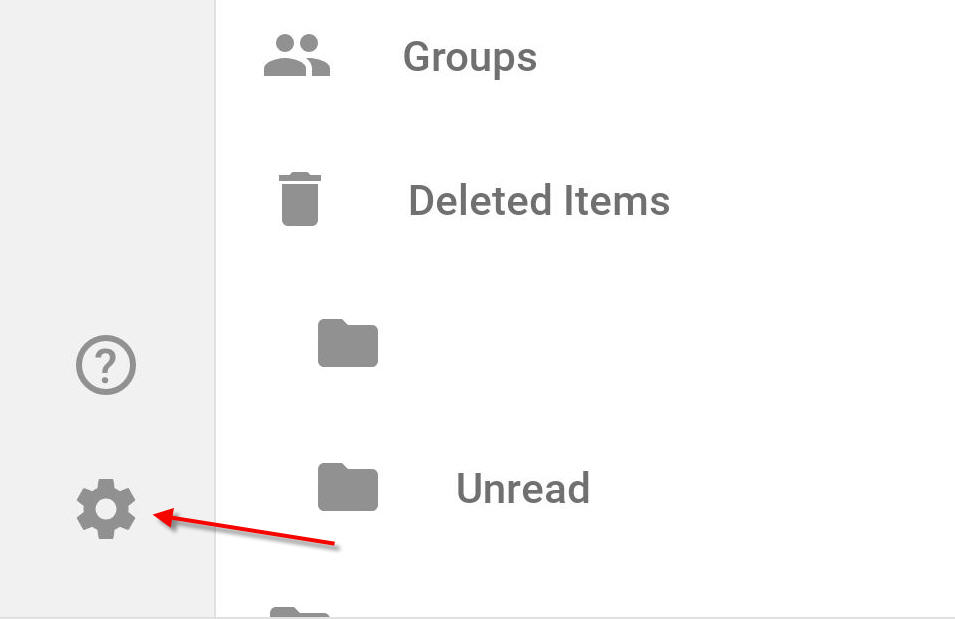
2. Tap Settings (the gear icon)
. 
3. Scroll to the Mail section.
4. Tap Signature.
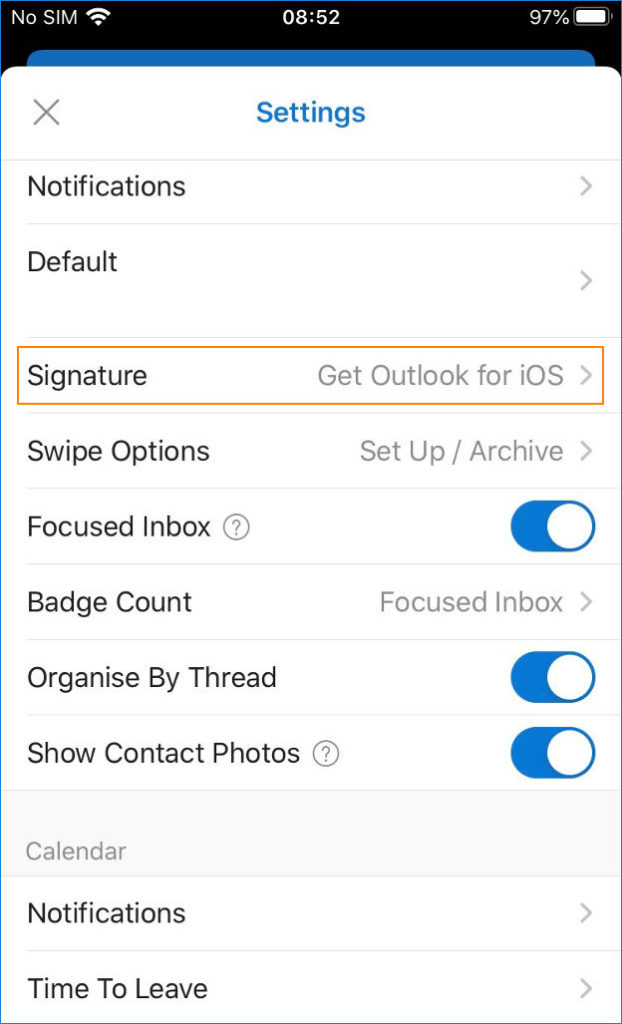
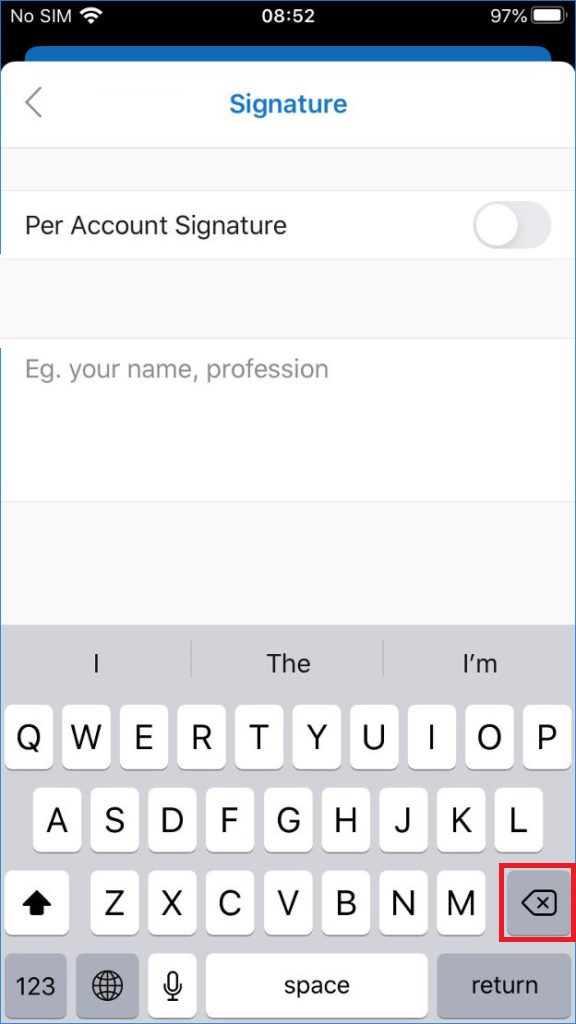
5. In the Signature screen, erase the signature.
1. Tap on the menu bar icon, three horizontal bars, on the top left corner of the screen.
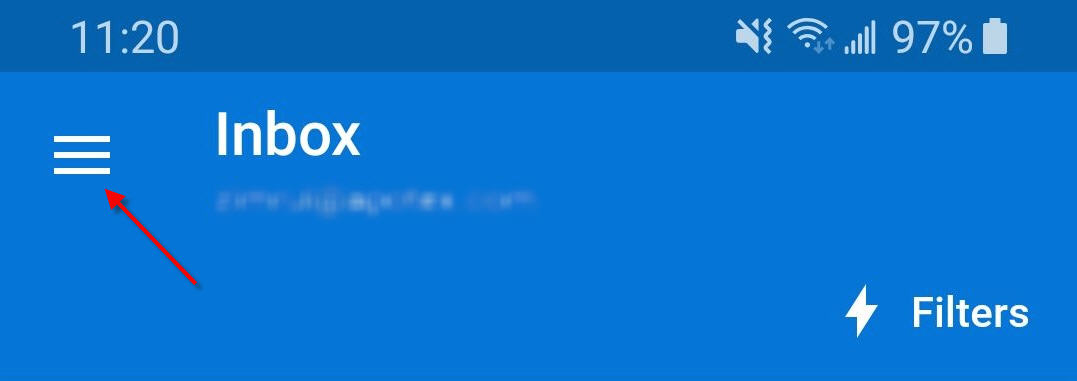
2. Tap on the Settings icon (the gear icon) to open Outlook settings.
3. Scroll down to Signature and tap on the Signature section and erase the signature.