


Changing Your Background on Microsoft Teams and Zoom

Feb 09, 2021
 151
151
When you join a meeting, you have the option to set a custom background. The different VBC backgrounds have been provided to you by your IT department. If you notice you do not have any VBC backgrounds to choose from, contact the IT department as soon as possible to get it resolved.
How to change your background in Teams:
- Once you have joined a meeting, click on the 3 dots in the menu bar at the top.
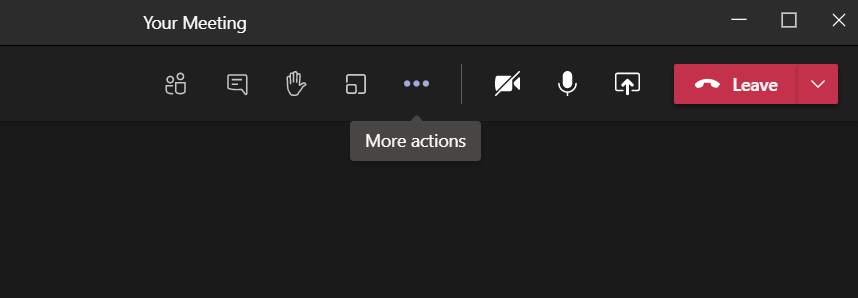
- From the drop-down menu, click on Apply background effects.
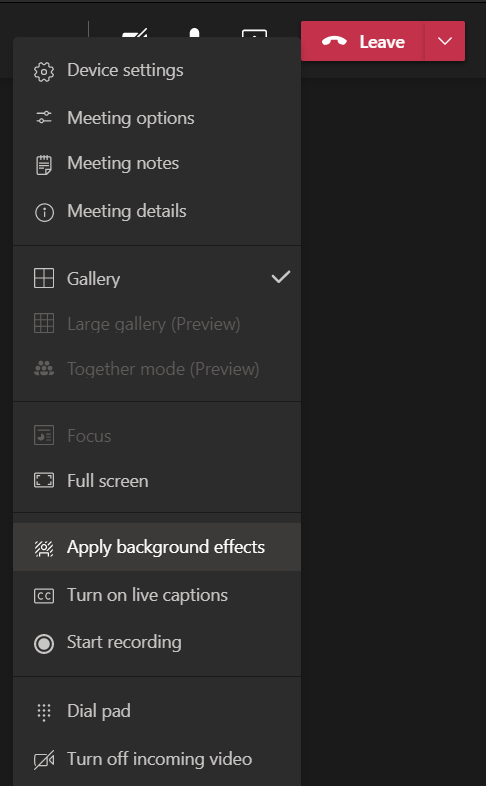
- A list of backgrounds to choose from will appear. Be sure you select a VBC branded background.
- You can click on Preview to see a preview of the background. Please note: on the preview, you and the image will be reversed. This is normal, others will see this image correctly.
- When you have selected the background you want, click on Apply and turn on video.
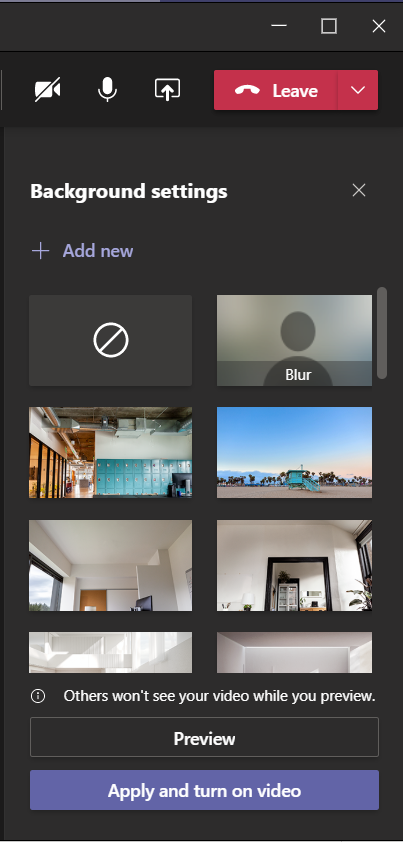
You and your background should appear to everyone in the meeting.
To change your background in Zoom:
- Click your profile picture, then click on Settings.
- In the left menu bar, click on the Virtual Background Tab.
- Click on the + tab to the right of Choose Virtual Background.
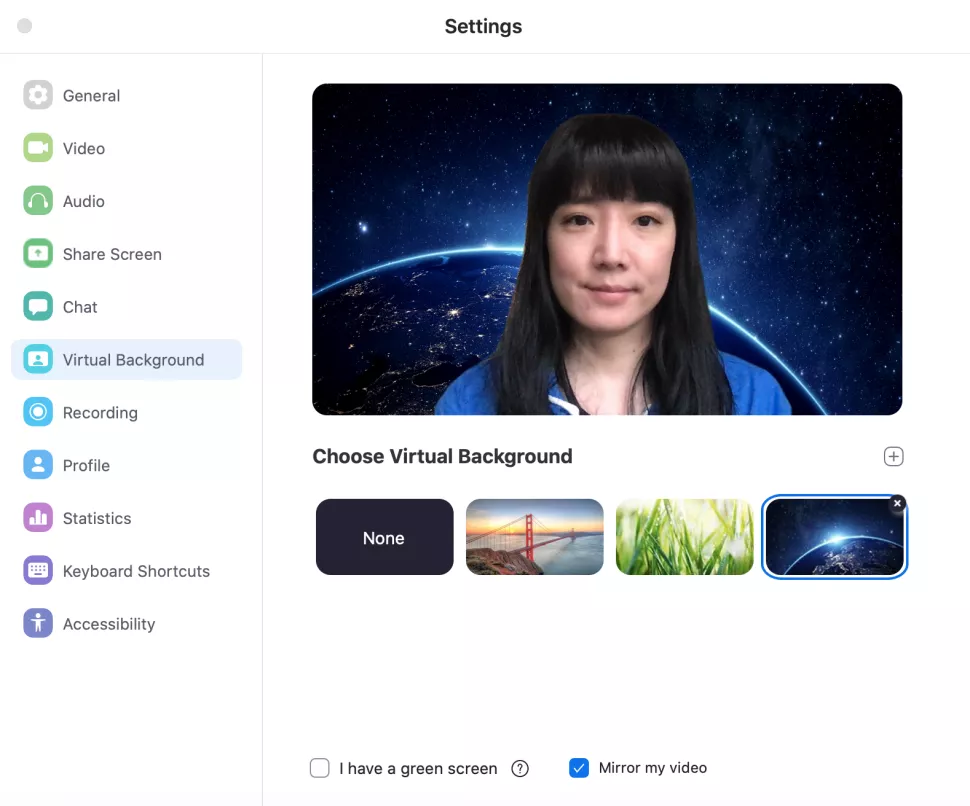
- Navigate to your "Pictures" folder. This can be found under "This PC" within windows explorer.
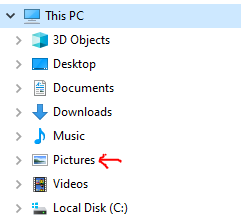
- Open the "Teams" folder.
- Select one of the branded VBC backgrounds.
The selected background will now show up.

