Wireless Screen Mirroring on Windows 10 on Conference Room TVs

Aug 18, 2023
 103
103
Windows 10 has offered the ability to mirror your screen to any dongle or device (streaming box, TV) compatible with the popular Miracast standard since its launch in 2015. In this article, we will show you how to use the wireless screen mirroring from your Windows 10 machine to one of the Conference Room TVs.
Connect Using Windows 10:
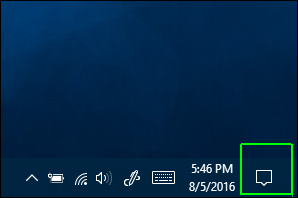
- Left-click on the action center icon. It's represented by the speech bubble icon in the lower right corner of the screen.
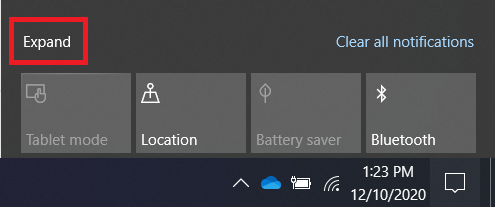
- Left-click Expand
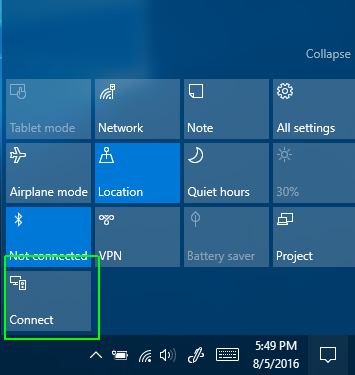
- Left-click Connect
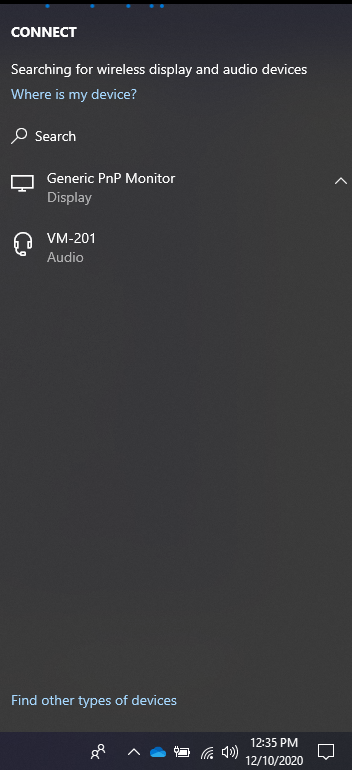
- Left-click on the correct wireless name of the device in the respective conference room location show in the list below.