


Outlook: Sending Messages from a Shared Mailibox

Dec 01, 2020
 120
120
Outlook
If you want to send messages from a shared mailbox, you need to make sure the "From" field is enabled:
- Start a "New Email."
- Click the "Options" tab.
- Click the "From" button.
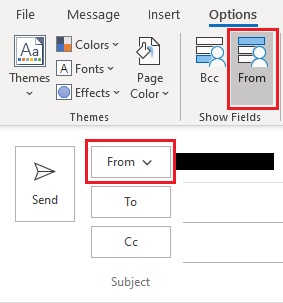
The "From" field will now be visible for all New Email messages going forward. You can now click the "From" button and select "Other Email Address..." Here you can manually type the shared email address or click the "From" button and select the address from the Address Book.
Note: Not all mailboxes have been made visible for the Address Book. If your mailbox is not in the Address Book, you can manually type it instead of clicking the "From" button.
Outlook on the web
If you are using Outlook on the web, see the section "Send email from the shared mailbox," in this article.

