Outlook: Missing Signature

Apr 14, 2021
 194
194
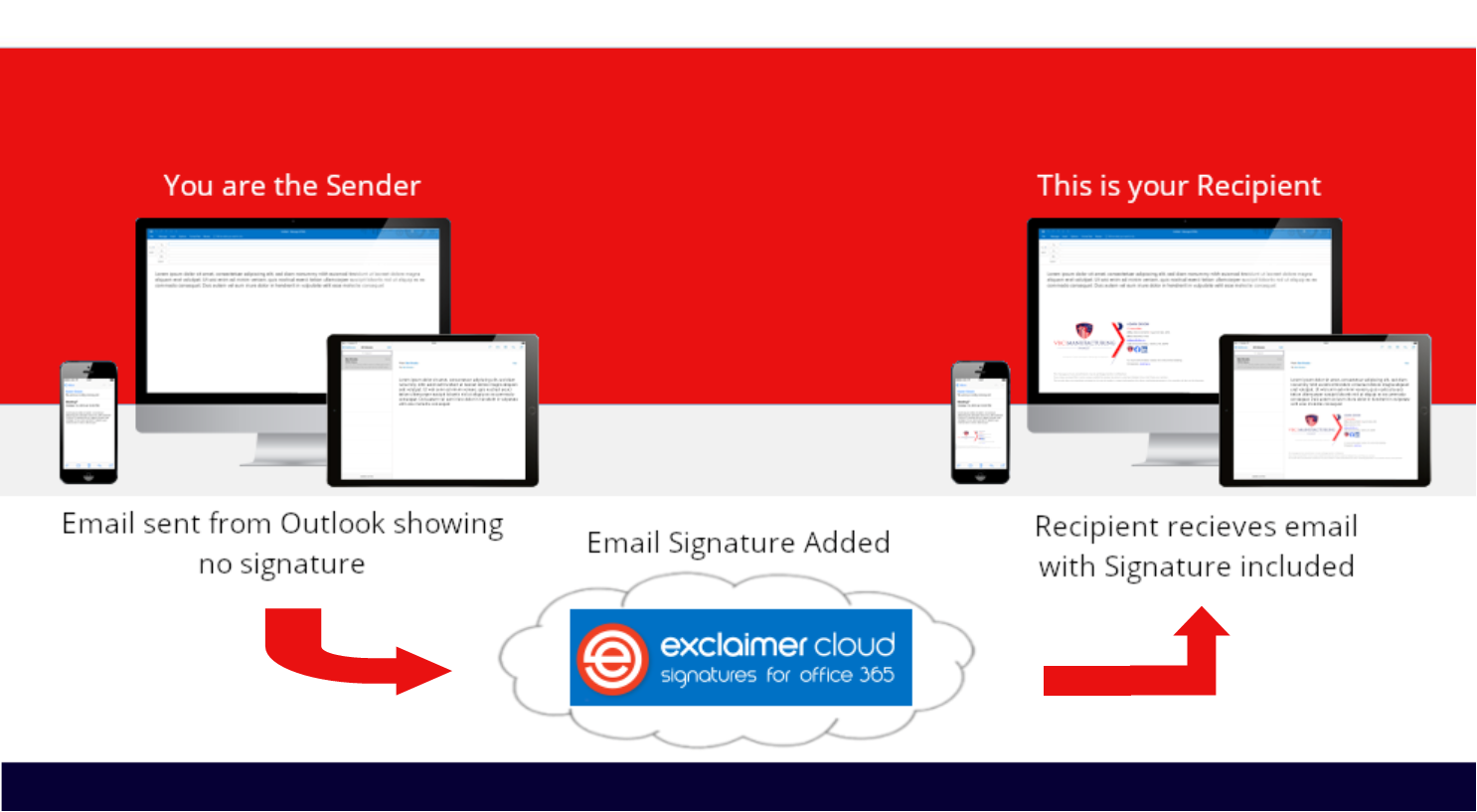
When you create an email in Microsoft Outlook, the majority of you will not see a signature. That is because your signatures are being managed for uniformity by the Exclaimer Cloud Microsoft 365 Signature Manager. The signature is added after you send a message. It will be visible in the Sent Items folder. The signature will also be visible in the message that appears in the Inbox of your recipient(s). You can test your signature by sending yourself an email. The message you receive in your Inbox (and Sent Items folder) will have your signature.
The diagram from Exclaimer below shows the workflow of how your signature is added to your email: