


Printing: RICOH IM C4500 Printer/Copier/Scanner

Aug 24, 2022
 344
344
You can now print to the RICOH IM C4500 multi-function device on the 2nd floor. This device has the ability to print 11 X 17, scan to email and store print jobs until you enter a code.
- You can download the installer here: https://www.ricoh.com/software/dev_soft_manager
Note: For Mac, you can click the direct link to the "Ricoh_IM_C3000_C3500_C4500_LIO_1.8.0.0.dmg" file in step 2. - That will select your operating system and language version. On the page that appears, click the download link to obtain the installer. On Windows, this will be the “driver_web_installer.exe” file. On the Mac, this will be a DMG file. The name will depend on your OS version. For OS 10.2 and later, this will be the "Ricoh_IM_C3000_C3500_C4500_LIO_1.8.0.0.dmg" file.
- Run that downloaded file to install the printer drivers for the RICOH IM C4500.
- You can follow the simple on-screen prompts to complete the installation.
Note: If you receive the message "Cannot find a device connected to the network," you may be on a different network than the printer. If that is the case, you can reach out to the VBC IT Department for the manual installation instructions.
Once the printer has been installed, you can add your User Code, which can be obtained from the IT department:
Windows:
- On the "Start" menu, click "Windows System" > "Control Panel."
- Click "View devices and printers" under the "Hardware and Sound" Category. If you are in the Icons view, just click "Devices and Printers."
- Look for the Printers section, not the Devices section, then right-click the RICOH IM C4500 PCL 6 printer icon, and then click "Printer Preferences." Be sure NOT to click just "Properties" but "Printer Preferences."
- Click the "General" tab > "Preferences."
- Click the "Detailed Settings" tab.
- Click on "Job Setup" under Menu and then enter the User Code.
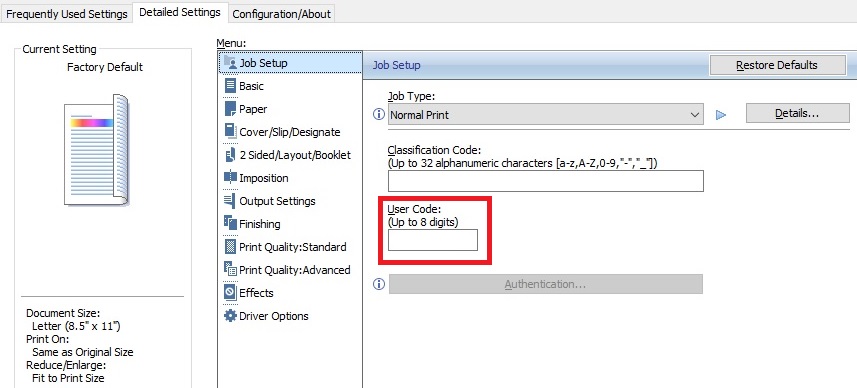
- Click "OK."
- After completing the configuration, close the setting screen of the printer driver.
Mac:
- Open a document to print on the computer, and display the setting screen of the printer driver from the print menu in the application.
- Select "Job Log."
- Select the "Enable User Code" check box, and then enter the user code.
- Click "Print."

