



 114
114
Team Viewer is a remote access and control software. Typically the VBC IT Department installs Team Viewer software on your device, so that in the event that technical support is needed on your device and IT cannot get to your device physically, they can log in to help troubleshoot/fix the issue(s). TeamViewer gives you a unique ID and password that your IT person needs to remote login.
Below are the steps to use TeamViewer:
1.) Double-click on TeamViewer on your desktop

2.) An ID and password should appear in a new window. Let your IT person know what they are and don't share them with anyone else.
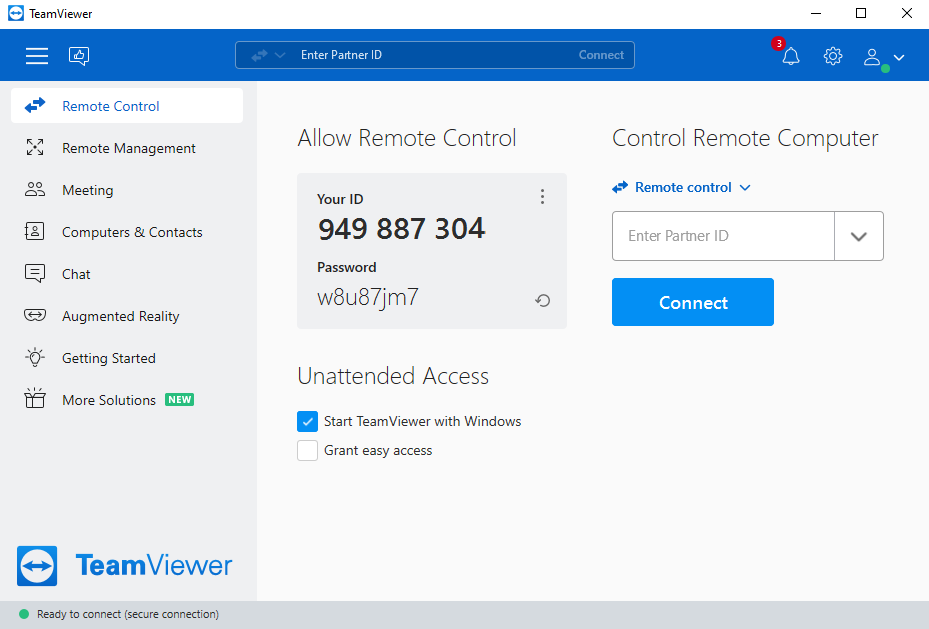
3.) VBC IT support person should be able to remote in and assist you with issue(s). NOTE: You still may need to provide VBC IT Support with usernames and passwords to the software you use that are causing issues, please do not leave your device unless you have made it clear to the VBC IT Support person that you are leaving.

