You are using an unsupported browser. Please update your browser to the latest version on or before July 31, 2020.
close
You are viewing the article in preview mode. It is not live at the moment.
Home > Software > Windows 10: Creating Desktop Shortcuts
Windows 10: Creating Desktop Shortcuts
print icon

On Windows, there are two kinds of programs (Desktop apps and Modern apps) and unlike a MAC there's no single visible folder that holds all of your apps, so things are a little more complicated than just dragging and dropping icons to the desktop as a Shortcut.



Luckily, we've put together instructions for how to make desktop shortcuts for both Modern apps (a convention that started in Windows 8 and includes Microsoft Edge, Mail and other programs) and Desktop apps (which you download yourself, like Chrome). The way to tell if an app is Modern or Desktop is if "Show File Location" appears as an option when you right-click on it in the Start menu.


Adding Shortcuts for Desktop Apps

1. Select the Windows button to open the Start menu.
 

2. Select All apps.


3. Right-click on the app you want to create a desktop shortcut for.


4. Select More.


5. Select Open file location. If this option does not appear, this app is a Modern app, so you'll want to use the second set of instructions.


6. Right-click on the app's icon.


7. Select Create shortcut.


8. Select Yes.


You've got a desktop shortcut for your Desktop program!


Adding shortcuts for Modern Apps

1. Tap on the Windows icon to open the start menu.


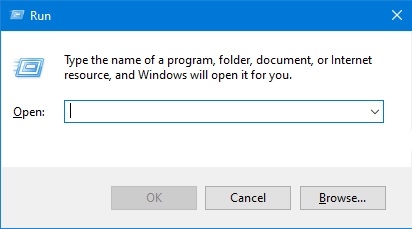
2. Click the [Windows Key] + R to bring up the Run dialog. Note: You can also click the Start menu > Windows System > Run.


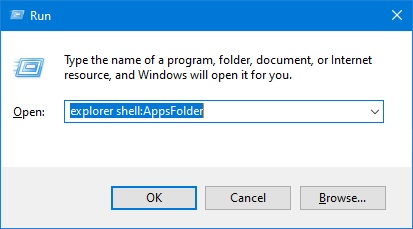
3. Type "explorer shell:AppsFolder" without the quotation marks and click OK.


4. Right-click an app.


5. Select Create shortcut.


7. Select Yes.


Your app has a desktop shortcut!


scroll to top icon