


Quick Assist

Oct 28, 2024
 94
94
If you need to share your screen for assistance, you can use the Microsoft Quick Assist application. You may have a shortcut to Quick Assist on your Desktop:

Otherwise, you can launch Quick Assist with one of these methods:
- Select Start , enter Quick Assist, then select it from the list of results.
- Press Ctrl + Windows logo key + Q.
Once Quick Assist opens, you will see a screen where you can request or offer assistance:
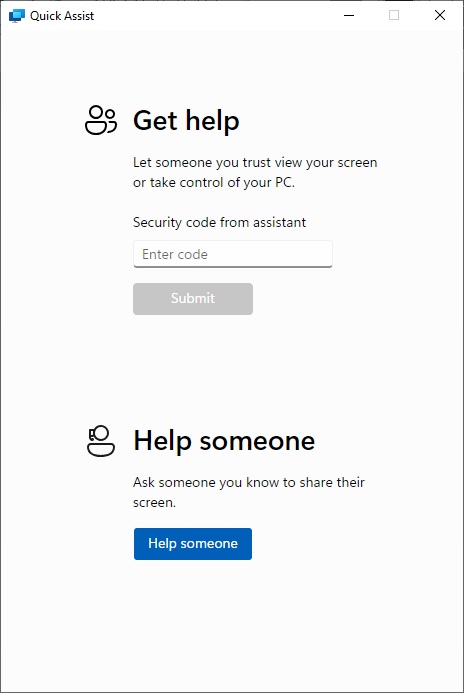
If someone is helping you, they will provide a code you can enter and submit. If you wish to offer help, click "Help someone" to generate a code you can provide.
NOTE: If prompted for your credentials, use your email address and password.
You can read more about Quick Assist in this article: Solve PC problems remotely using Quick Assist

