



 384
384
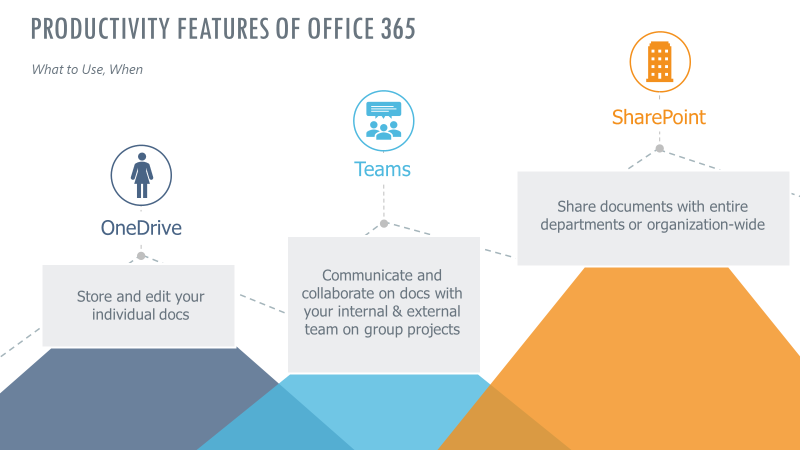
This article will provide a basic overview of Microsoft SharePoint, OneDrive and Teams as well as how we use them at VBC. As you can see by the image below, these three applications all overlap but have different functions within the Office 365 suite of products.

OneDrive acts as your own personal workspace to store your files. It’s important that you store your files on your OneDrive, so they are not just stored locally on your computer. Storing your files locally puts you at risk of losing them in the event your system is damaged, lost or broken. When you store your files in OneDrive, they are automatically being synchronized from the cloud to your computer. With your Office365 subscription, you have 1024 GB of storage space on your OneDrive. Use your OneDrive to store all documents you do not wish to share with anyone else.

Microsoft Teams is a communication and collaboration application. It is used to help a team of users communicate on a particular task or project. Teams can be used to communicate through chat, video and voice. Teams can also be used to share files as part of the team or project allowing you to comment on the files and track revisions. Teams is linked to SharePoint! Although Teams looks different, SharePoint is the engine driving Teams and is the location files in Teams are stored.

SharePoint is a place where you can share files & information in the form of miniature websites. It allows you to create elaborate interfaces to display information, links and updates. SharePoint is especially useful for the purpose of document collaboration within the organization.
How do I use OneDrive within Volumetric Building Companies?
When OneDrive is installed on your system you’ll see a little cloud icon at the bottom right of your screen next to your time/date, volume control and others. It looks like this: 
If you hover your mouse over the icon, it will give you an update on the status of your OneDrive. It should read, OneDrive—Volumetric Building Companies Up to Date.
If your OneDrive is busy syncing files from your PC to your OneDrive, your status may be different. OneDrive stores all your files in “The Cloud” and synchronizes them to your PC. In the event of a computer failure, your files will be safe.
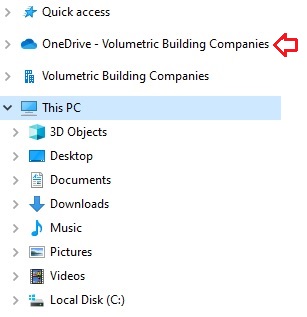
OneDrive operates like a folder on your computer where you can save and move files. It shows up under Windows Explorer with the cloud icon next to it.
You may also have another item in your list named Volumetric Building Companies, but with a different icon in front of it. In the image to the right, this second item is listed below my OneDrive. Do not confuse this as your OneDrive as this is the location of your synchronized SharePoint files. More info on that in the SharePoint section.
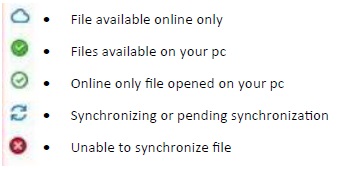
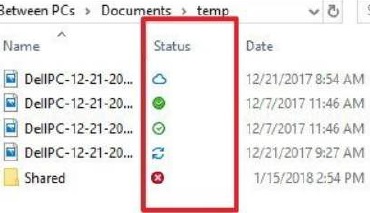
When you open your OneDrive, your files and folders will have a small icon in the status column shown in the image below:
 |
 |
You can change the synchronization status of a file/folder by right clicking on the file and choosing from the menu.
- Share: Allows you to share your file/folder with other people. Once shared, the status changes to this:

- Always Keep On This Device: Ensure your system will always synchronize this file to your computer.
- Free Up Space: This turns off Synchronization of the file and stores the file only on your OneDrive.
How do I use SharePoint within Volumetric Building Companies?
Let’s look at some definitions to help us understand SharePoint.
SharePoint: A web-based platform that houses multiple mini websites within your organization where you can share, store and organize information and data.
Site: A mini website within SharePoint where members of the site can share and collaborate together.
To access your SharePoint homepage, login to your Office365 Admin Console and click on the SharePoint icon. It’s a good idea to bookmark this page for future reference. This is your SharePoint console to access other SharePoint sites and information.
Your SharePoint homepage will show you the sites you currently follow, recent sites you’ve visited, news from any sites you follow (we currently aren’t using this) and sites you frequent the most. Each site is represented by a small box with the site name, icon, and recent activity.
When viewing the list of sites, you’ll notice each site listed has a small star at the top right. If the star is solid white, this is a site you are currently following. If the star is hollow, this is a site you are not following. When following a site, it will show up in your following list allowing you quicker access to find a site.
There are two different types of SharePoint sites:
- Teams Sites - Typically used for collaboration between members to share information and data with each other. Teams sites are directly connected to a Microsoft Team.
- Communication Sites - Typically used to share large amounts of information to a group of employees or members. They are typically used be departments such as HR that need to get information out to a large group of individuals.
Let’s look at the main parts of a SharePoint Site
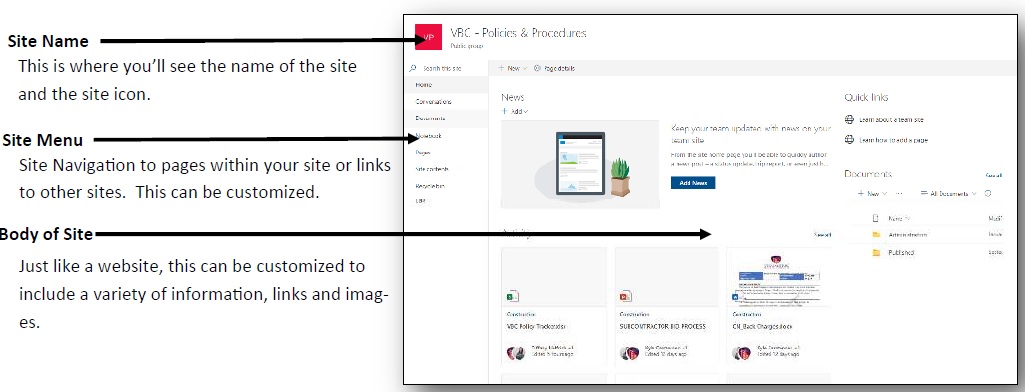
Using SharePoint to store files:
Many of you will use SharePoint as a file storage site. You’ll need to know who to access files, upload files and edit files within your SharePoint site.
From your SharePoint site, you can view the files by clicking on the link that takes you to the file storage page. This is usually named Documents.
Once you have opened the Documents page within your site, you’ll be able to see all the folders and files just like you do on your computer.
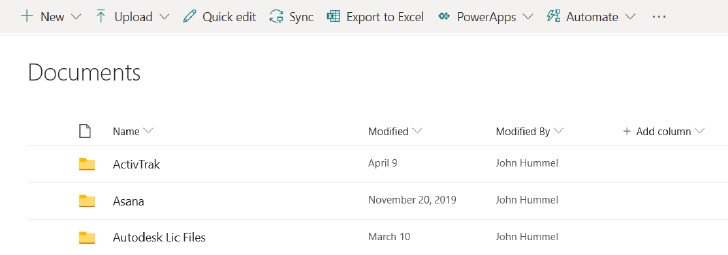
From here, you can upload files from your computer, download files or open the files and edit them. You can see when the file was last modified and who modified the file.
You can also setup your system to "Synchronize" files and folders to your local PC. When this is setup, the files will show up in file explorer on your PC under

Similar to the way you access your OneDrive files, you can do the same with these. See the section on OneDrive.
SharePoint Site Security
SharePoint sites are all about permissions. If you are not a member of a site, you will have to request access when you attempt to open the site. Site Owners will then be notified and can grant you access. Some SharePoint sites are open to everyone and simply log you in as a guest, while others are more secure and require you to have membership access.
Sharing Files / Folders
You also can share a single file or folder with someone who is not a member of the SharePoint site. This is useful when you need to share a file externally (outside the organization) or when don’t want to grant someone membership to the entire site, but simply give them access to a particular file and/or folder.
To share a file/folder:
- Select the item.
- Click on the 3 dots and choose “Share” from the menu.
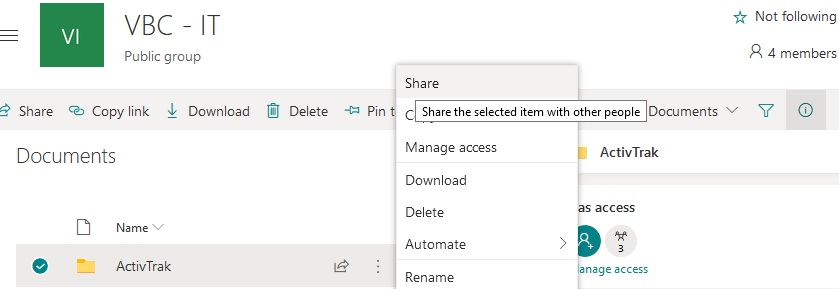
- Follow the prompts to share your file folder.
You’ll need the person’s email address to do this.
Note: By default, sites are not setup to share outside the company, but if this is needed, just ask the IT department for assistance.

