



 133
133
Once your Admin has added you as a member of a shared mailbox, you should close and then restart Outlook. Once this is done, the shared mailbox should automatically display in your Folder pane in Outlook. You can click the arrow to the left of the mailbox name to expand the folders.
If you were just recently added, it may take some time before the shared mailbox appears. You can wait some time before closing and re-opening Outlook. If you still do not see the shared mailbox, you can manually add it:
- Open Outlook.
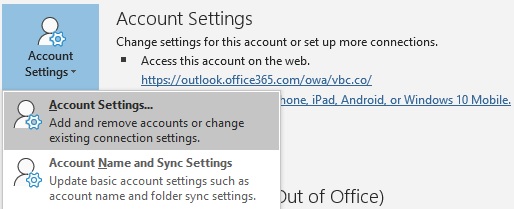
- Click the File tab in the ribbon > Account Settings, then select Account Settings from the menu.
- Select the Email tab.
- Highlight the correct account, then choose Change.
- Click More Settings > Advanced > Add.
- Type the shared email address, such as [email protected].
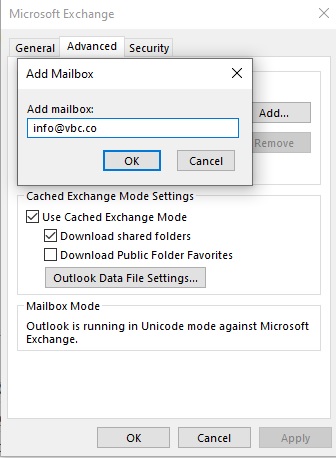
- Click OK > OK.
- Click Next > Finish > Close.
More information on shared mailboxes can be found here: https://support.office.com/en-us/article/open-and-use-a-shared-mailbox-in-outlook-d94a8e9e-21f1-4240-808b-de9c9c088afd
Outlook for Mac
To open a folder shared with you, follow these steps in Outlook for Mac:
- On the File menu, click Open.
- Click Other User's Folder.

