


Microsoft: Multi-Factor Authentication and Authenticator

Jun 19, 2024
 124
124
You can update the phone number that is associated with your multi-factor authentication, or MFA. You can access the settings from this link.
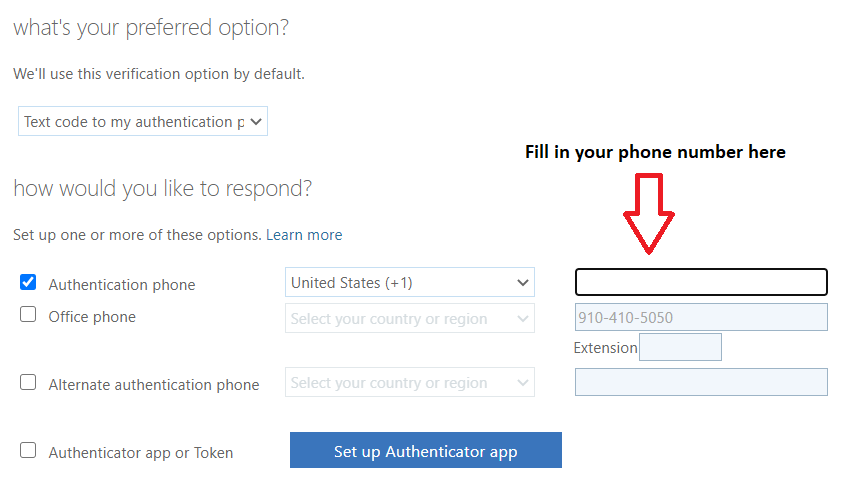
- Fill in your phone number in the box to the right of Authentication phone. If you're default verification option is set to the Authenticator app, you can change it to "Text code to my authentication phone."
 .
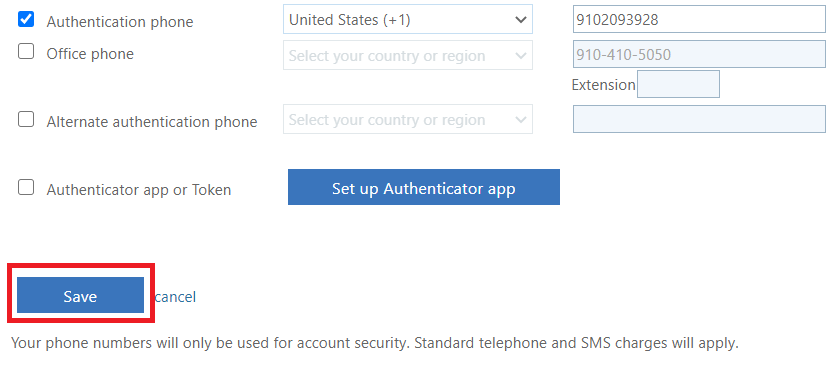
. - Click on Save
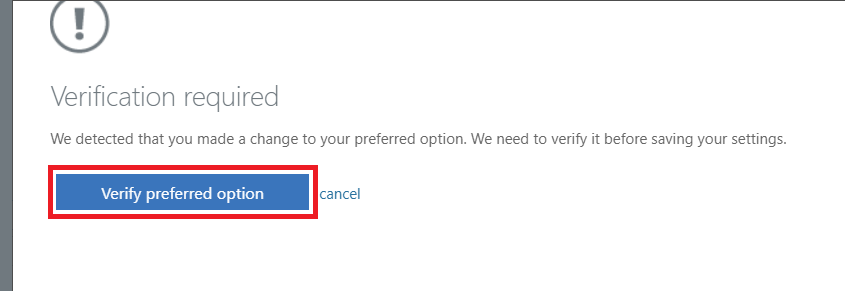
- A popup should appear. Click on Verify preferred option.
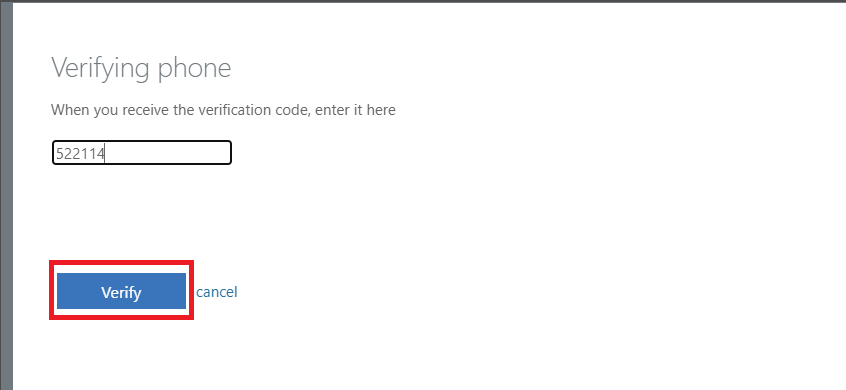
- Fill in the box with the 6 digit code you received, then click on Verify.
Questions or issues? Feel free to contact your IT department

