


SAP: Change SAP GUI password

Feb 22, 2022
 296
296
Please follow the steps below to change your SAP password. NOTE: If you do not know your password please submit an IT ticket and the IT department can reset it.
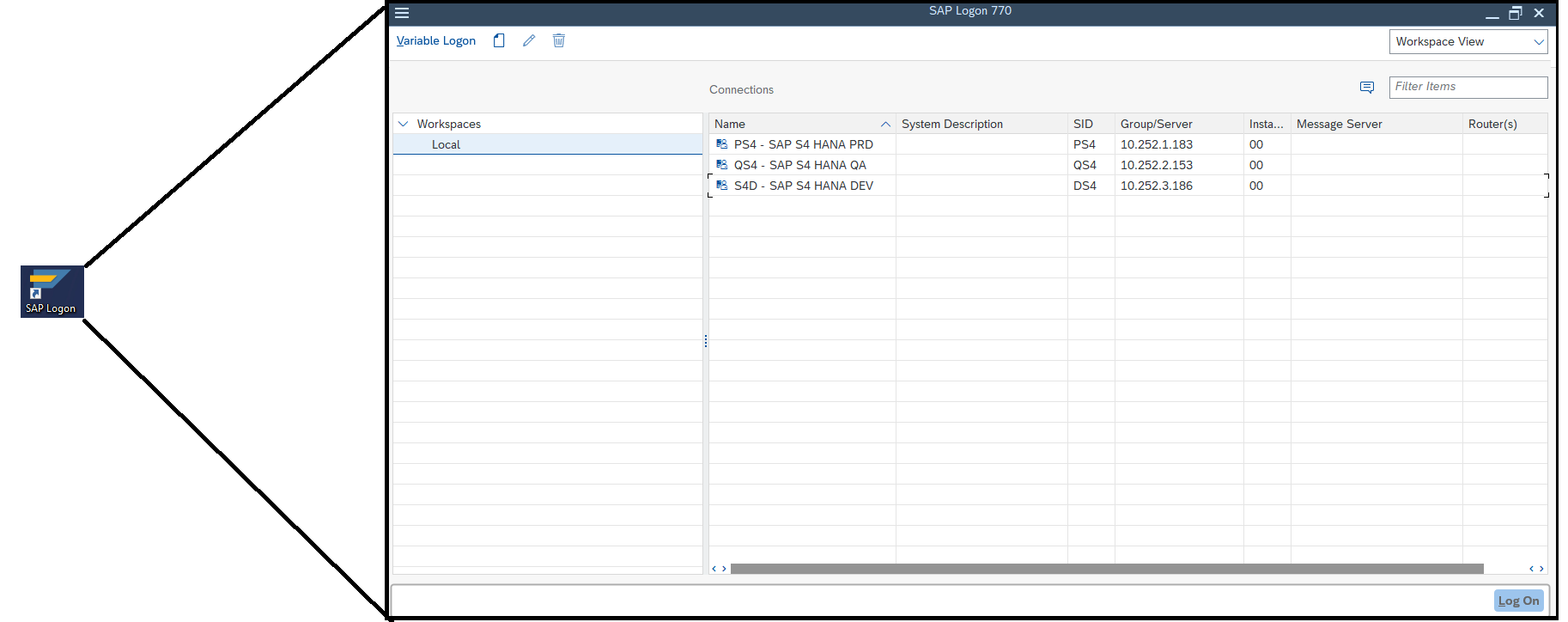
1) Double-click on "SAP Logon" icon. Connect to the correct SAP server under "Connections."
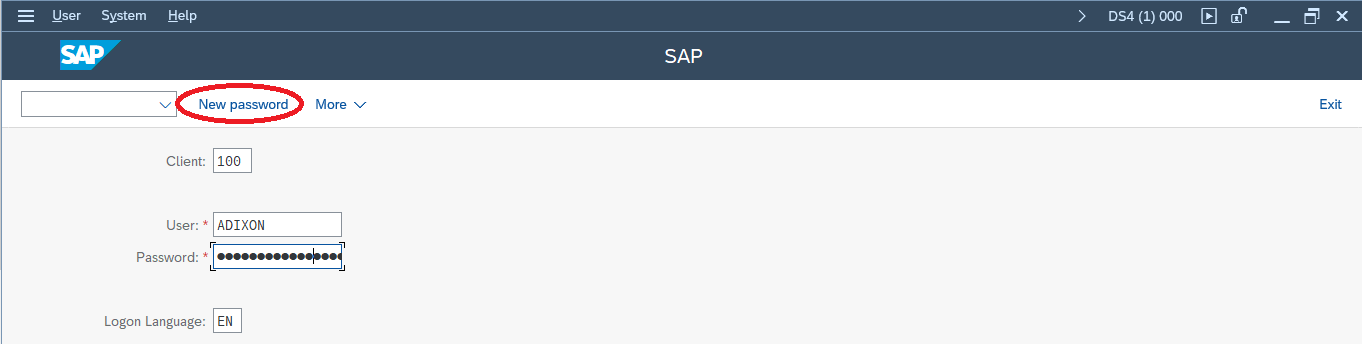
2) Once connected, type in your current "User" and "Password," but DO NOT press ENTER. Instead, click "New Password" located at the top, then press ENTER.
NOTE: You can change your password only once a day
3) You should see a prompt to enter a new password. Enter the new password and press Enter.
Your SAP password has now be changed.

