


System: Install New Fonts

Feb 17, 2022
 155
155
- Download the "New_Fonts.zip" file from the bottom of this article to your "Desktop."
Note: You may see a File Type Alert: "Warning: This type of file could harm your computer! Are you sure you want to download this file?" Please ignore this message. - Right click on "New_Fonts.zip" and left click on Extract All...
- You will see a popup that shows you to "Select a Destination and Extract Files." Click on Extract on the bottom right.
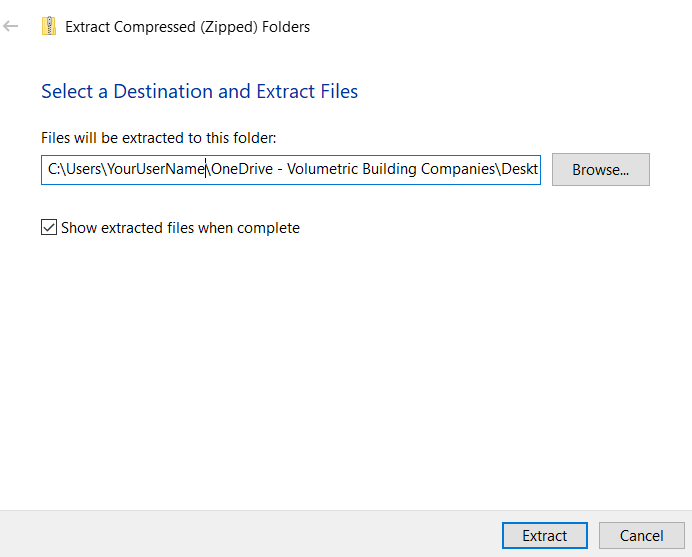
- A popup should appear with the extracted New_Fonts folder. The new "Fonts" folder should show an icon without a zipper on it. Double-click on it.
- You should see two different folders "Playfair" and "Raleway." Double-click to open the "Playfair" folder
- You should see several font files that start with "Playfair." Ignore the OFL and README text files. Click on "PlayfairDisplay-Black."
- Hold down Left Shift and left click on "PlayfairDisplay-VariableFont_wght" at the same time. If you did this correctly, all font files should be highlighted.
- Right click on "PlayfairDisplay-Black" and click on Install for all users. In the event that a popup says that the "...font is already installed. Do you want to replace it?", left click on the white box to the left of the message that says Do this for all current items and then click Yes.
- Go back to the "Fonts" folder and open the "Raleway" folder. Repeat steps 6-8 for the 20 Raleway font files. Ignore the "OFL" and "README" text files.
If you have any questions, please contact someone in IT.


